View Variants
Save changes such as hidden objects, materials, view options and camera position as View Variants that viewers can pick from a dropdown.
Written By Nira.app
Last updated 21 days ago
Prerequisites
A Professional plan, an Enterprise plan, Premium assets on a Business plan, or a Trial
An Editor login. Only Editors can create, change, or delete View Variants.
Edit Mode, which is where view changes are saved from
ℹ️ Note: Anyone who can open the asset can select a View Variant, including public link visitors. Edit Mode is only needed to create and manage them.
What are View Variants?
Nira lets you save view changes into a dropdown menu item called a View Variant. The View Variant can then be selected to apply those view changes at any time. Selecting a Chute Only variant, for example, highlights the chute of a concrete factory by hiding every other object.
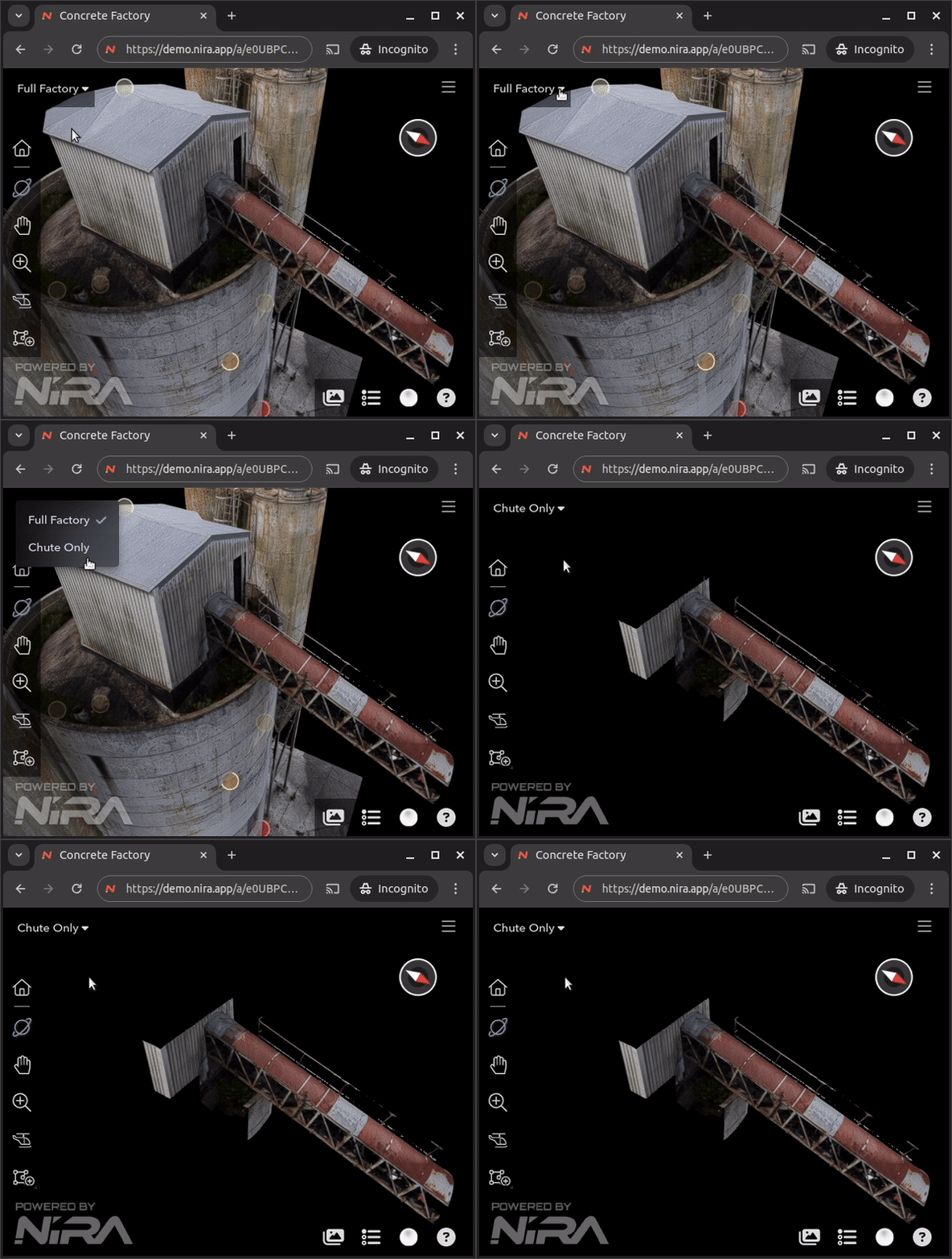
A variant stores only the changes you made relative to the Base Settings, not a full copy of every setting. Any view change can be saved this way:
Object visibility: hide or unhide objects
Material settings: change colors, textures, or any other property
View options: environment settings, culling, measurement units and much more
Camera position: the exact viewpoint the variant opens at
Creating a View Variant
Log in as an Editor.
Click the Edit Mode button, and make a change to your asset.
Click the Save | Revert... button. The Save | Revert dialog is displayed. It lists how many view changes are pending, and you can click Show Details to see a summary of them.
Choose Save as new variant and enter a name for it. This name becomes the label of the dropdown menu item. To update the variant you are already viewing instead, choose Save to <variant>. To throw the changes away, choose Revert changes.
Click Save.
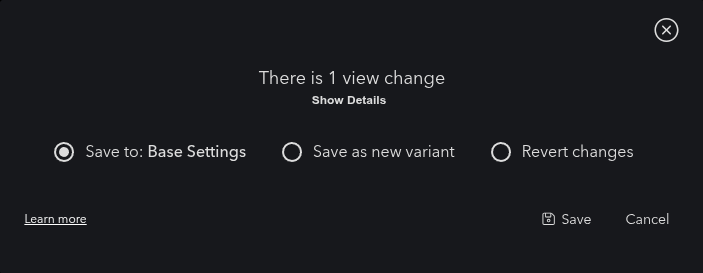
That is it. Anyone viewing your asset can now select your View Variant to apply these changes, and you can create as many View Variants for an asset as you like.
💡 Tip: Choose names your audience will understand. "Roof Inspection Zone" or "Foundation Only" tells a client something; "Variant 3" does not.
ℹ️ Note: Camera positions are not saved from this dialog. After saving, open Manage View Variants to save a camera position for your variant. See Camera positions below.
Managing your View Variants
Log in as an Editor.
Make sure you have created at least one View Variant for the asset. If you have not done so yet, follow the steps in Creating a View Variant above.
Open the Variants dropdown in the upper left corner of the viewer and select the last menu option, Manage View Variants...
The Manage View Variants dialog is displayed:
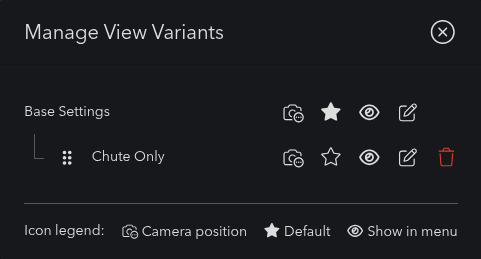
The dialog has several functions:
Action | How |
Rename  | Click the edit button next to a View Variant. The name you choose appears in the Variants dropdown. |
Camera position  | Click the camera button next to a View Variant to save, revisit, or remove its camera position. See Camera positions below. |
Default  | Click the star button next to a View Variant to make it the default. The default variant is applied automatically when the asset is opened. |
Change ordering  | Drag the handle at the left of a row and drop it above or below another row to reorder the dropdown. |
Show in menu  | Click the eye button next to a View Variant to toggle whether it appears in the dropdown menu. |
Delete  | Click the trash button next to a View Variant to delete it. Base Settings cannot be deleted. |
A legend at the bottom of the dialog identifies the Camera position, Default, and Show in menu icons.
⚠️ Warning: Once deleted, a View Variant cannot be recovered.
Camera positions
Every View Variant can remember a camera position. When someone selects the variant from the dropdown, the camera moves to the saved position and the variant's view changes are applied.
To save one:
Move the camera to the viewpoint you want.
Open the Variants dropdown and select Manage View Variants...
Click the camera button

on the variant's row and choose Save current camera position.
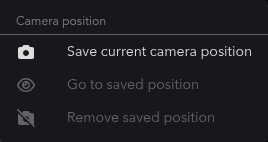
Nira confirms with a message reading Saved camera position for "<name>". It'll be restored whenever you open this variant.
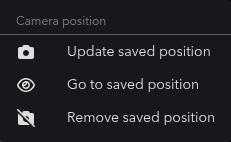
The camera button is filled in for any variant that has a saved position. Clicking it again opens the same Camera position menu, which then offers:
Update saved position: replace the saved position with the camera's current position.
Go to saved position: move the camera to the saved position without changing anything else.
Remove saved position: clear it. The variant then applies its view changes without moving the camera.
Which camera position visitors see
When an asset is opened, Nira applies the default View Variant (the one marked with the star) and moves the camera to its saved position. This includes Base Settings when it is the default. If the default has no saved camera position, the asset opens at the Starting View camera instead. Links that point to a specific viewpoint are unaffected and always open at the viewpoint in the link.
If you use Set Starting View while the starred View Variant has its own saved camera position, Nira displays a notice reminding you that the variant's position takes priority when the asset is opened.

The Base Settings
When you select a View Variant from the dropdown menu, the Base Settings are applied first, followed immediately by the changes (the delta) from the chosen View Variant. To apply modifications across all View Variants, it is best to save them to the Base Settings. This avoids having to update and save each View Variant individually, and it keeps your variants tidy.
The Base Settings row in Manage View Variants has a camera button too, and it works like the one on any other variant: save a position and selecting Base Settings from the dropdown will move the camera there. This is separate from the asset's Starting View, which the toolbar's Set Starting View button sets: the Starting View is where the asset opens when the default variant has no saved camera position, and saving it also updates the asset's thumbnail image.
Was this helpful?
Still need help? Share an idea