Asset transfers
Copy an asset, with its versions, annotations and markups, into another Nira organization using a one-time transfer link.
Written By Nira.app
Last updated About 3 hours ago
An asset transfer copies an asset from your Nira organization into another Nira organization. The copy includes all of the asset's versions, files, variants, annotations and markups. Your original asset stays in your organization unchanged.
Before you start
Asset transfers must be turned on for both organizations. To turn them on for yours, contact Nira support.
Only Admins can send or accept a transfer.
An archived asset must be unarchived before it can be transferred.
Send an asset
Open the asset and select the Share tab.
Scroll down to Transfer Asset.
Optional: enter the recipient's email address. Nira emails them the transfer link.
Click Generate Link.
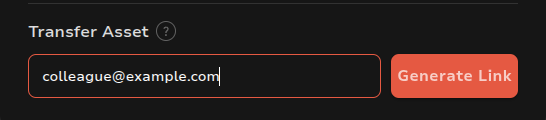
The link appears below the button and is copied to your clipboard. Click the copy icon to copy it again. If you did not enter an email address, send the link to the recipient yourself.
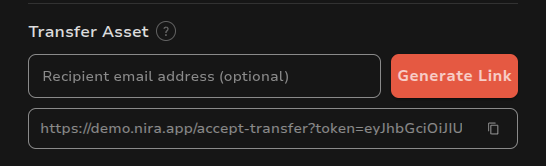
The link works for 7 days and can be used once. Anyone who has the link can copy the asset into an organization where they are an Admin, so send it only to the intended recipient.
Receive an asset
Open the transfer link.
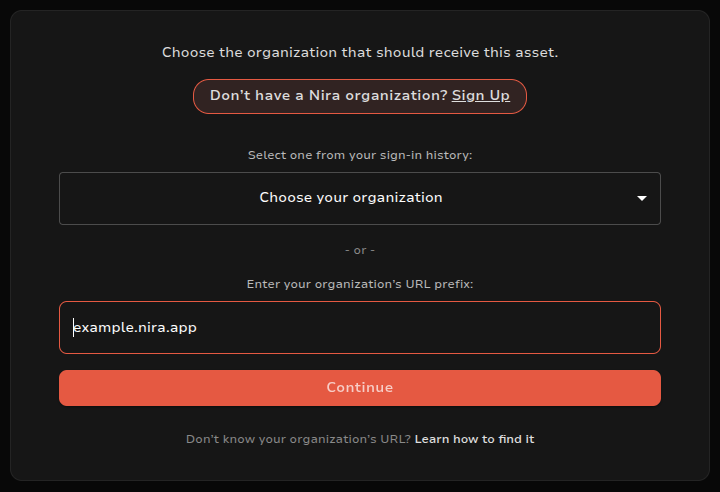
Choose the organization that should receive the asset. Pick it from your sign-in history, or enter its URL prefix and click Continue. If you do not know the prefix, see Find your organization URL.
Sign in to that organization if prompted.
Review the Accept Asset Transfer dialog. It shows the organization the asset comes from, the asset name, its number of versions and its size. Click Accept.
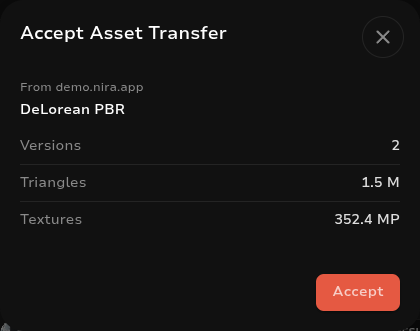
After you accept, Nira opens the Asset Transfers tab of the Upload Jobs page, where you can follow the copy's progress. The asset appears in your Asset List when its status reads Succeeded.

What the receiving organization gets
The copy arrives as Private. Change its visibility in the Share tab.
Tags from the sending organization are not copied.
If an asset with the same name already exists, "(copy)" is added to the new asset's name.
The asset counts toward the receiving organization's plan usage. If it does not fit within the plan's limits, the dialog says so, and the transfer cannot be accepted until you free up space or upgrade your plan.
Was this helpful?
Still need help? Share an idea